 Carvomi
First-time setup
Do this once, at home. When you first open the app, it walks you through Get started in 3 steps.
What you need
- An Android phone (Android 6.0 or later; Android 11 or later for every feature)
- A car with a web browser that can join your phone’s hotspot over Wi-Fi
| Phone version | What you get |
|---|---|
| Android 11 or later | Everything: one-time automatic setup, fully automatic start, dedicated car screen |
| Android 7 – 10 | Your phone screen in the car, with touch control from the car |
| Android 6 | View your phone screen and open apps from the car |
💡 To see your Android version: phone Settings → About phone → Software information.
Install the app
Get Carvomi from Google Play, install it and open it.
Get started
-
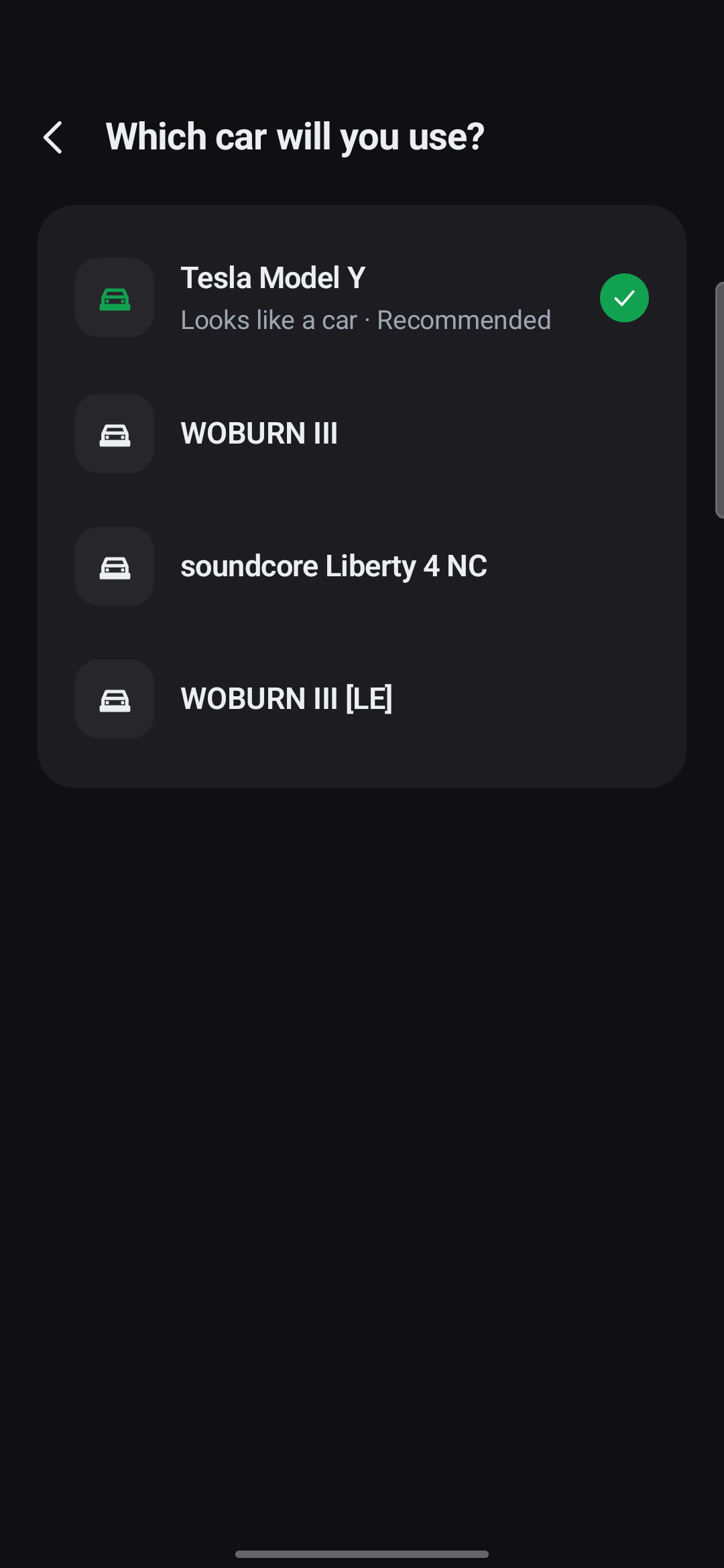
Pick your car
If your phone has been paired with the car over Bluetooth, the car is in the list. Pick it and Carvomi turns on by itself when you get in. You can also do this later: “Skip (I’ll turn it on myself)”.
-
Run the “One-time automatic setup” (Android 11 or later, recommended)
Do it on your home Wi-Fi and follow the app. Steps 3 to 7 below show what it asks.
-
Allow notifications
The app puts a code box into a notification, so it needs notifications.
-
Turn on Developer options
Phone Settings → About phone → Software information, then tap ‘Build number’ 7 times until it says Developer mode is on.
-
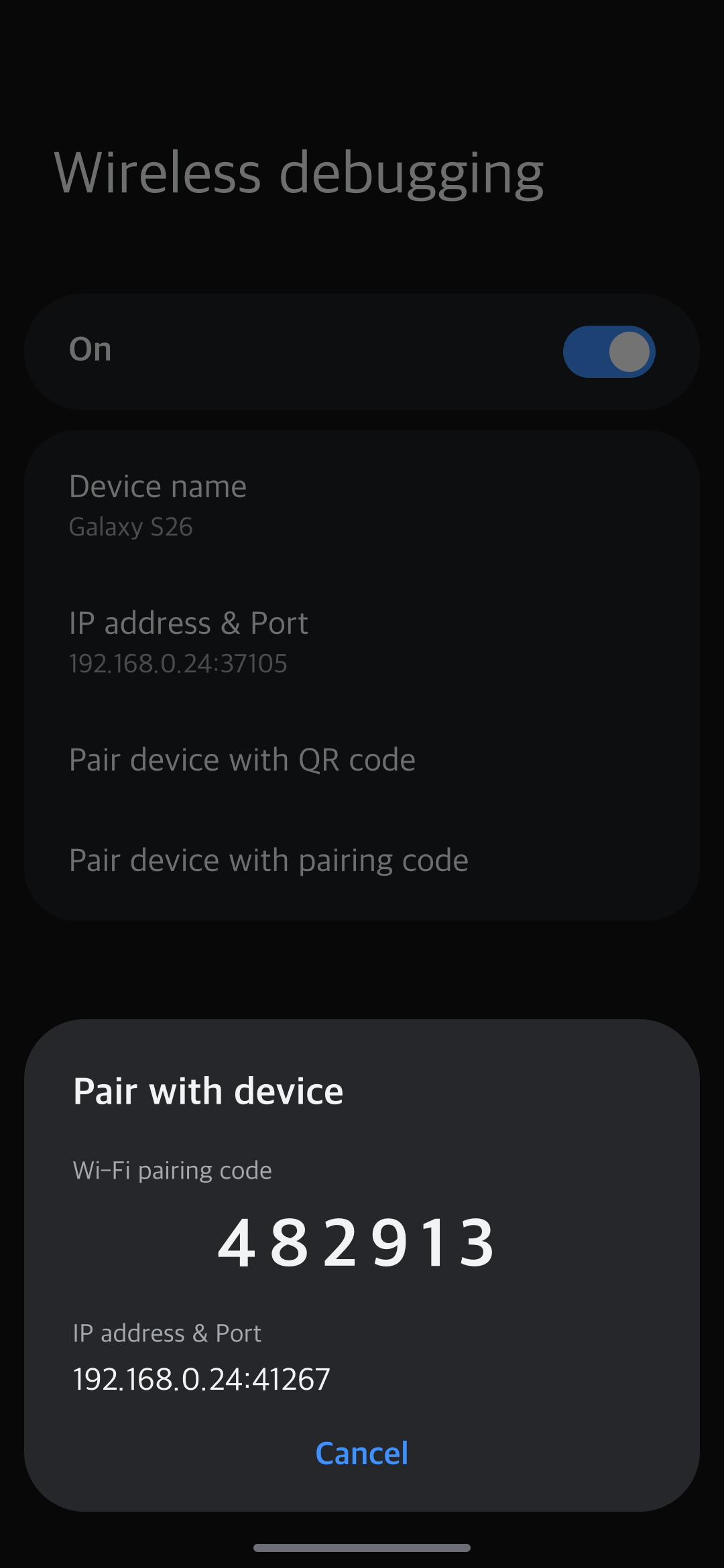
Turn on Wireless debugging and open the pairing code
Tap “Open” in the app to jump to Developer options. Turn on ‘Wireless debugging’. When asked, check ‘Always allow on this network’. Then tap ‘Pair device with pairing code’.
-
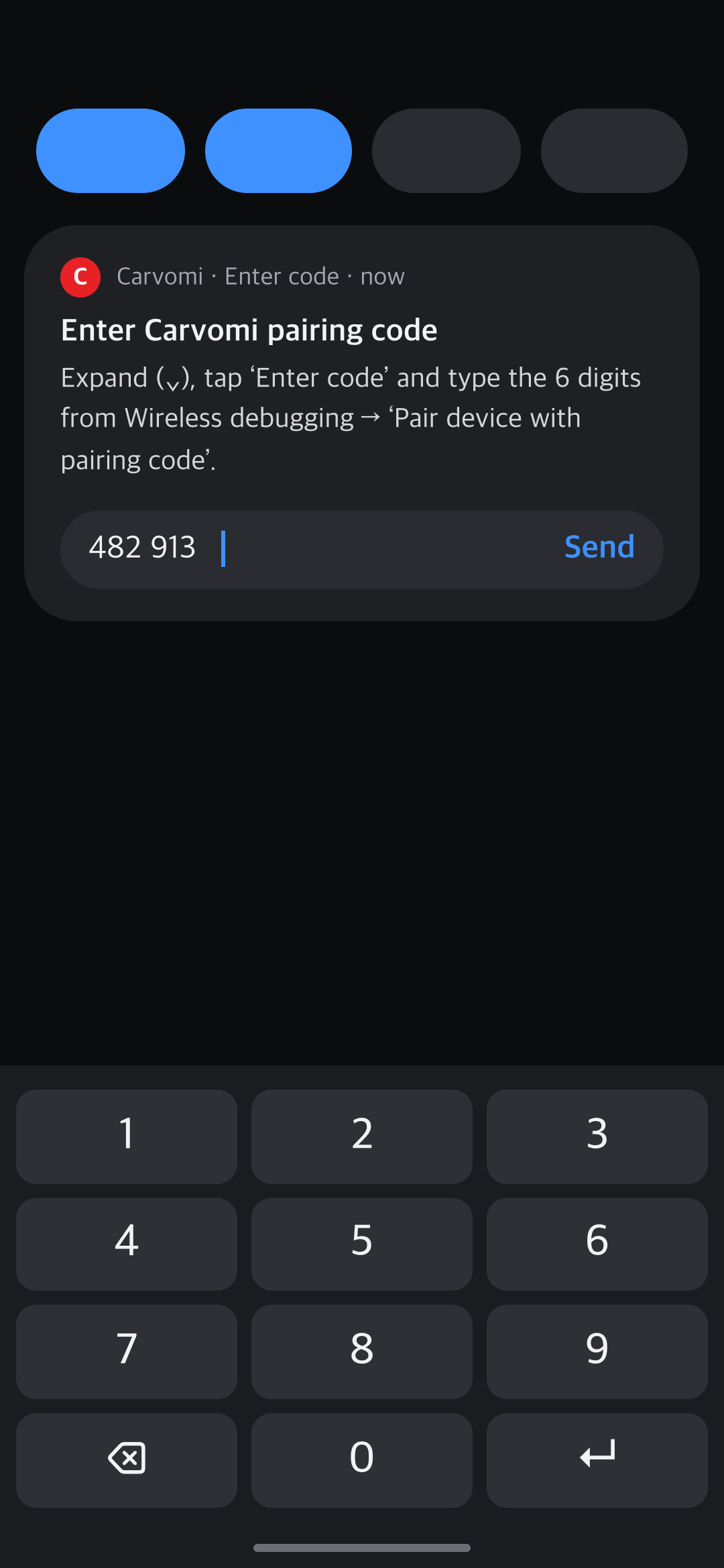
Type the 6-digit code into the notification
Keep the code window open and pull down the notifications from the top of the screen. Expand (⌄) the “Enter Carvomi pairing code” notification, tap Enter code and type the 6 digits.
-
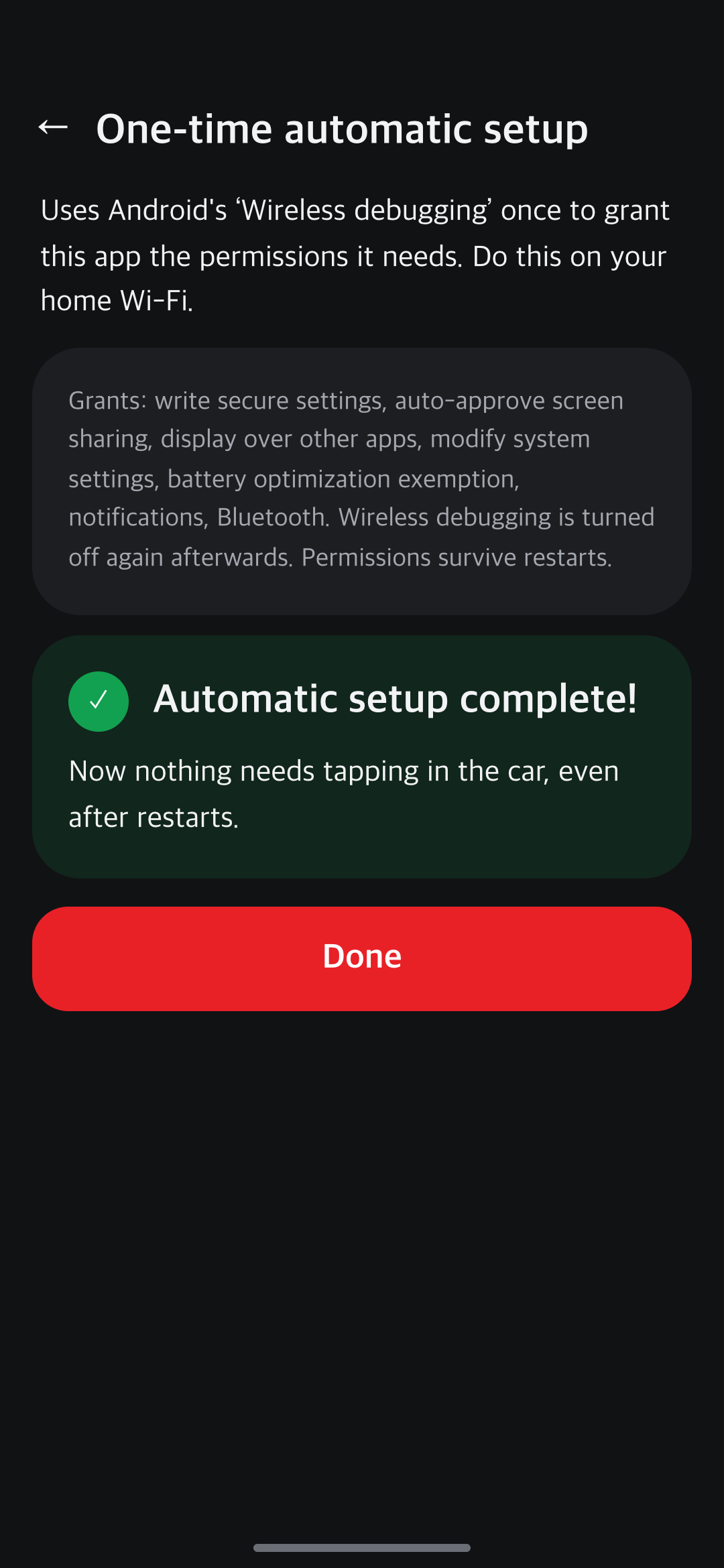
Wait for “Automatic setup complete!”
It appears after a few seconds. Wireless debugging turns itself off again.
-
Try it in the car
The last step happens in the car. See Connect in the car.
This setup stays after you restart your phone. So in the car, nothing needs tapping — it just starts. The keyboard and screen rotation switch by themselves, and you can use the dedicated car screen.
💡 On Android 10 or earlier, skip the automatic setup. In the app, tap “Readiness” → “Touch control from the car” → Fix to turn on Accessibility yourself.
Still stuck? Email carvomi@gmail.com with your diagnostic code (DX-…).